
Onboarding Teachers · HELP-03
Admin Portal Navigation
Tour the dashboard widgets, header navigation, and role-based administration areas.
Start at the dashboard
After sign-in, the portal opens the EdTalkies Engine Health dashboard. Think of this page as the entrance hall: it confirms which connected services are available, then the header takes you to each administration area.
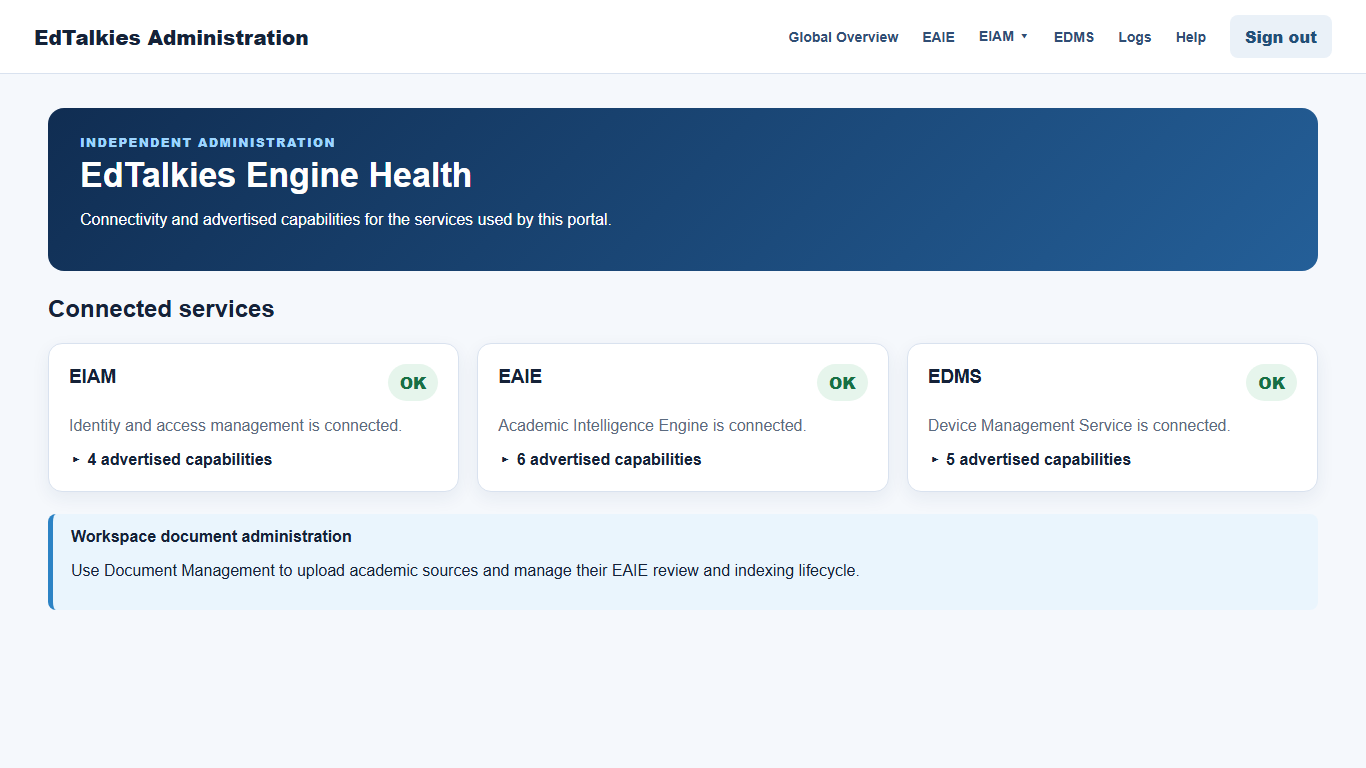
Understand the dashboard widgets
The Connected services area contains one card for each configured engine: EIAM, EAIE, ECAI, ECAM, and EDMS.
- The service name identifies the downstream engine.
- The status badge shows its current state, such as ok, unavailable, or not configured.
- The detail explains the response or connection problem.
- Advertised capabilities expands to show the functions reported by that service.
One unavailable service does not automatically stop the others. If a card reports a problem, note the service name and status, then use Logs when support evidence is required.
The Workspace document administration panel points administrators to EAIE Document Management for academic-source work.
Take the header tour
Move from left to right across the header. What you see depends on your assigned role.
- Select the EdTalkies Administration logo at any time to return to the dashboard.
- Global Overview appears only for SuperAdmins and opens global users, subscriptions, and account administration.
- EAIE opens Document Management for uploading, monitoring, approving, re-indexing, and maintaining academic sources.
- Open EIAM to reach My Users and External EdTalkies Users. My Users manages people already in the active subscription; External EdTalkies Users finds eligible central accounts to add or invite.
- EDMS opens Device Management. Use Downloads for EDMA enrollment packages and registered devices, and Licenses for AI Blackboard device licenses.
- Logs opens sanitized portal activity, filters, copy controls, and the support-email action.
- Help opens this public guide library.
- EdTalkies AI opens the configured AI workspace in a new tab.
- My EdTalkies opens the central account profile in a new tab.
- Sign out clears the portal session and begins central EdTalkies logout.
Use the footer as a shortcut
The footer repeats the main areas allowed for your account. It is useful after reaching the bottom of a long table. If a navigation item is missing in both the header and footer, verify the account role and active subscription rather than assuming the feature is unavailable.