
Troubleshooting Support · HELP-13
Console Log and Support Diagnostics
Filter sanitized activity and prepare diagnostic evidence for support.
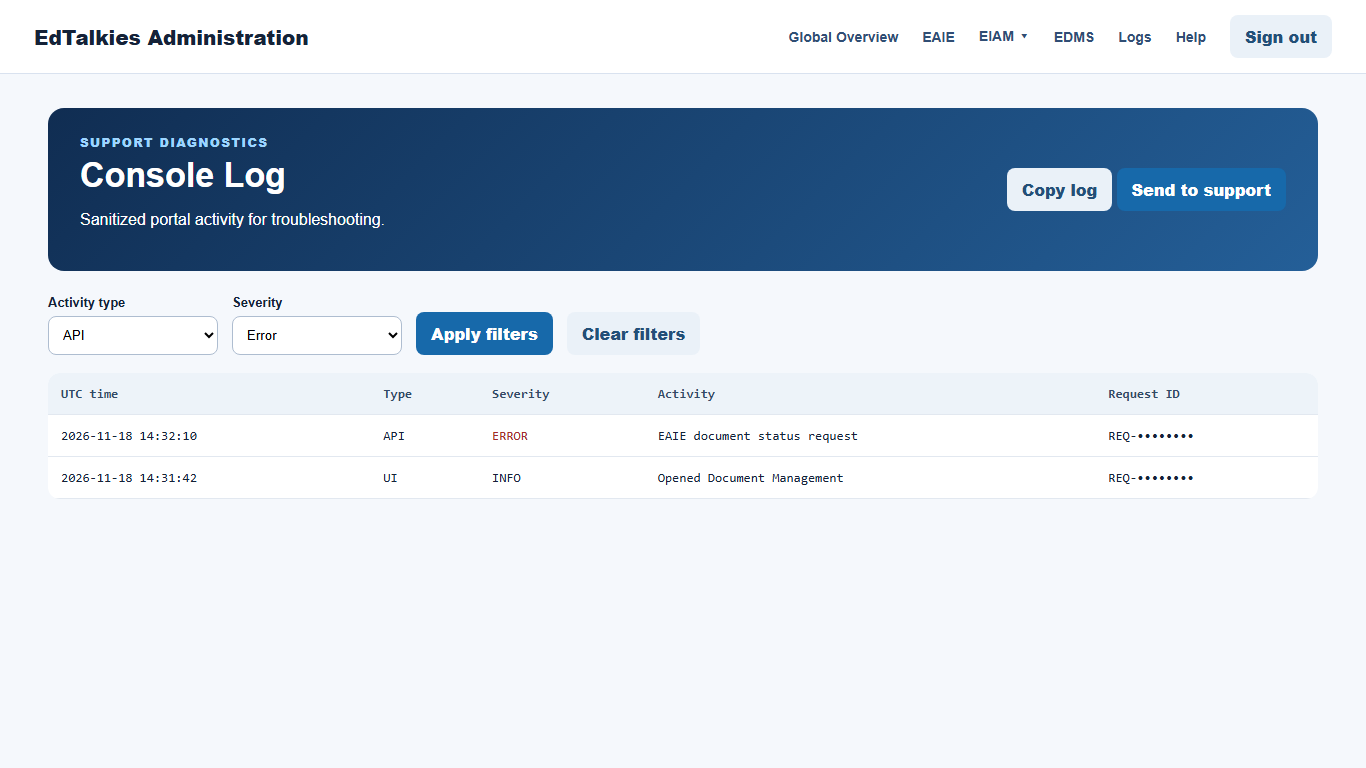
Review application activity
- Open Logs.
- Use Activity type to show API calls or user-interface activity.
- Use Severity to show information, warning, or error events.
- Select Apply filters. Use Clear filters to return to all activity.
The table is newest first and includes UTC time, event type, severity, activity, request ID, and available details. Use the per-event copy button for API events and errors when support requests the diagnostic record.
Copy or send the log
- Select the copy icon near the page heading to copy the current sanitized log export.
- Select Send to support to open the configured email workflow with the sanitized diagnostic content.
Review the recipient and message before sending. Add the affected user or device, the attempted action, and the time of the failure. Never add passwords, access tokens, API keys, device keys, or other secrets.
Logging boundary
The portal intentionally excludes authorization headers, API keys, credentials, and request bodies containing sensitive operations. When file persistence is unavailable, recent activity remains in memory but may be lost when the application restarts.