
Troubleshooting Support · HELP-14
Password Recovery and Session Sign Out
Reset a central password and end portal sessions safely.
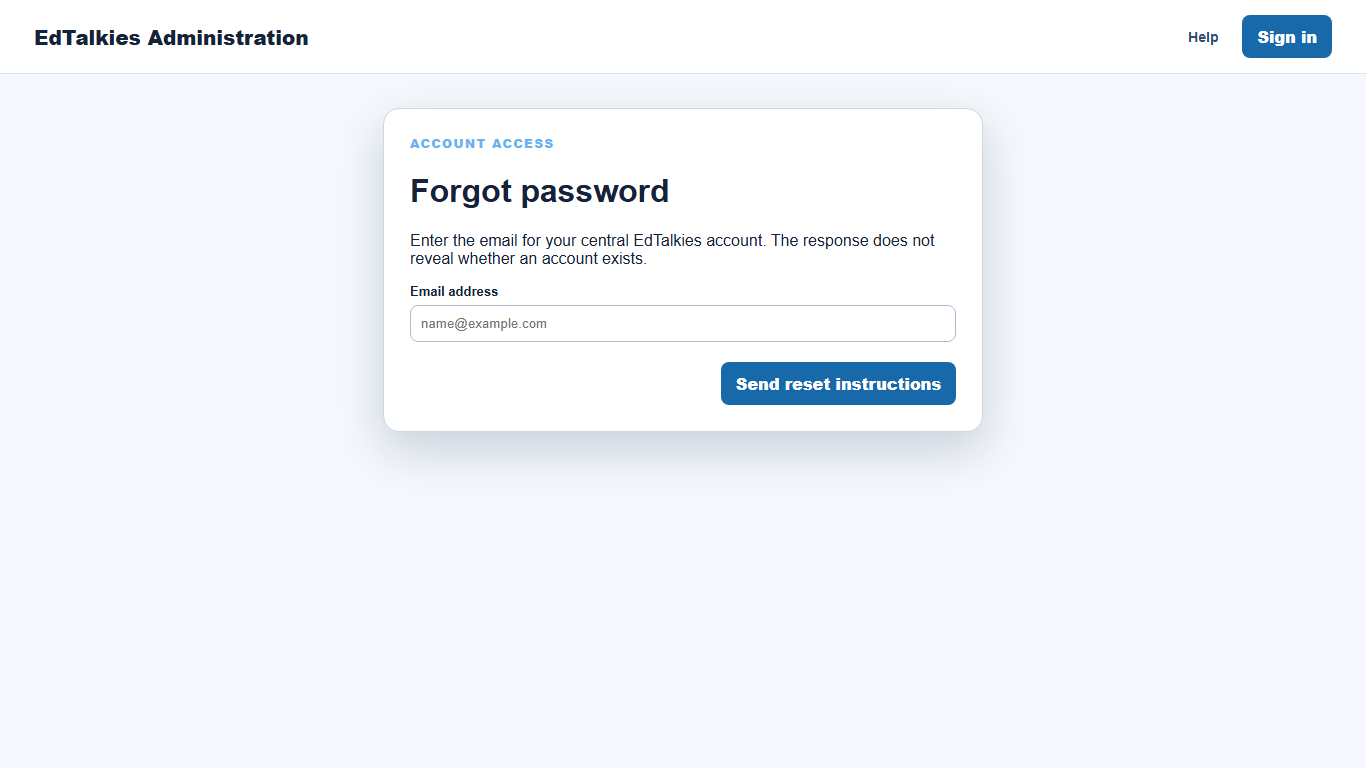
Request a password reset
- Open the Admin Portal sign-in page.
- Open Forgot password when available, or go to the password-recovery page provided by support.
- Enter the central EdTalkies account email.
- Select Send reset instructions.
The portal shows the same safe response whether or not an account exists. Check the inbox and approved junk-mail folder for the reset message.
Choose a new password
- Open the secure link from the reset message.
- Confirm the email address.
- Enter a new password with at least 12 characters that satisfies the displayed password policy.
- Select Reset password.
- Return to sign-in and use the new password.
Request a new link if the token is missing, invalid, expired, or already used.
Sign out safely
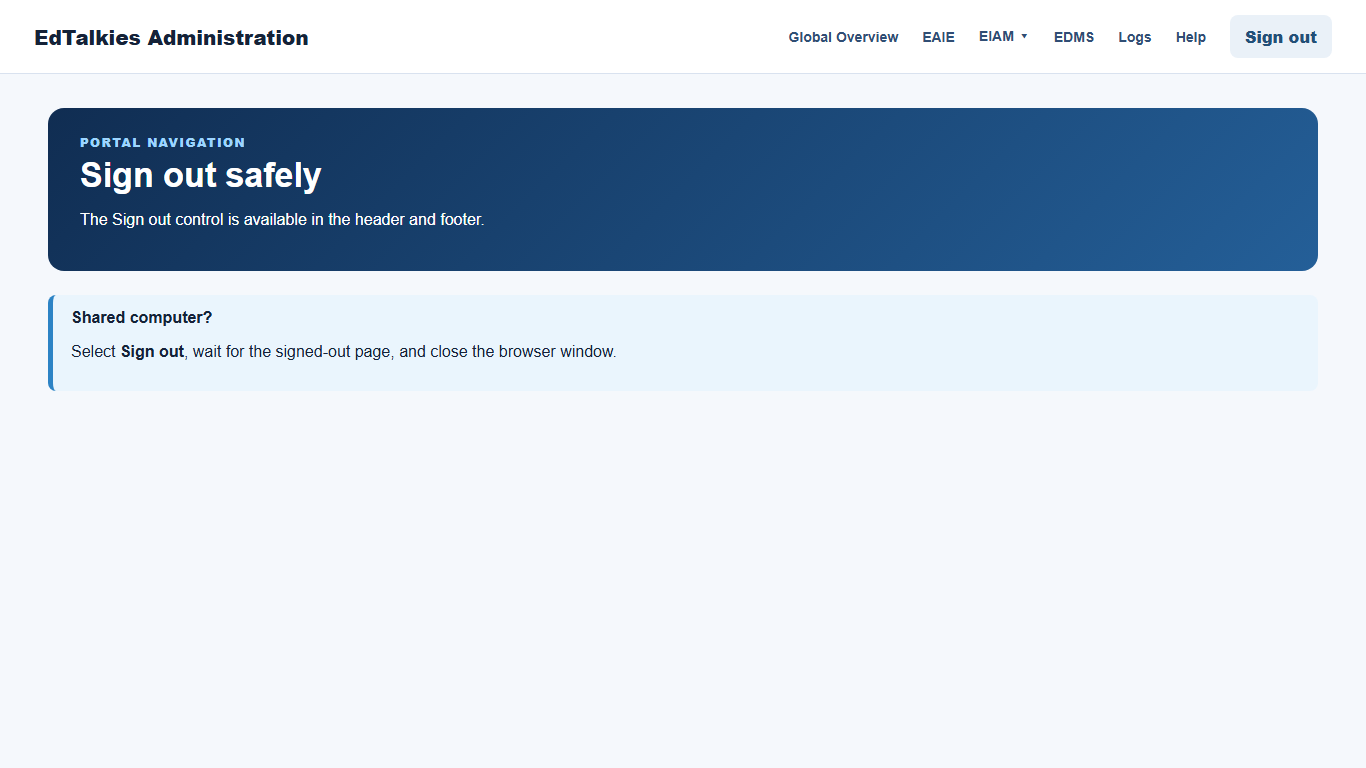
Select Sign out in the header or footer. The portal clears the local administration session and starts central EdTalkies logout. Close shared-browser windows after the signed-out page appears.
After a role change or session revocation, sign in again so the portal loads the current roles and subscription membership.