
Device Management · HELP-04
EDMA Download and Installation on IFPs
Create, download, reuse, and revoke an EDMA enrollment package.
Download the supported installer package
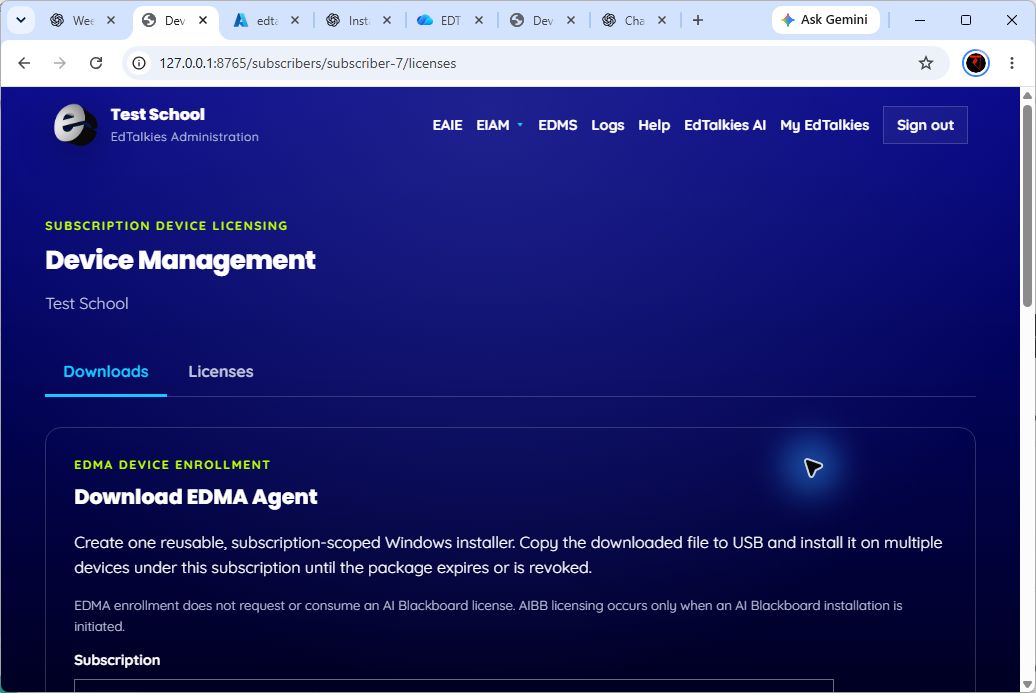
- Sign in with a Platform Admin account for an active subscription.
- Open EDMS and select the Downloads tab.
- Under Download EDMA Agent, select the subscription.
- Select a package expiration of 24, 48, or 72 hours.
- Select Download EDMA Agent.
- Save the Windows installer. The downloaded package is subscription-scoped and may be copied to USB for multiple IFPs until it expires or is revoked.
- In Batch packages, confirm the package is Active and note its expiration.
Creating an EDMA enrollment package does not consume an AI Blackboard license. AI Blackboard licensing is a separate action.
Installation boundary
The repository implements package creation, download, inventory, and revocation, but it does not contain the EDMA Windows installer UI or the IFP installation workflow. Follow the signed installer's approved deployment instructions on the IFP. Do not publish button-by-button Windows installation steps until they have been validated against the current EDMA build.
Package controls
- Select Download to retrieve an active package again.
- Select Revoke to prevent new devices from enrolling with that package.
- Create a new package when the previous package has expired or been revoked.