
Onboarding Teachers · HELP-02
Admin Role Assignment and Access Verification
Change a subscription role in My Users and verify the resulting access.
Change a role in My Users
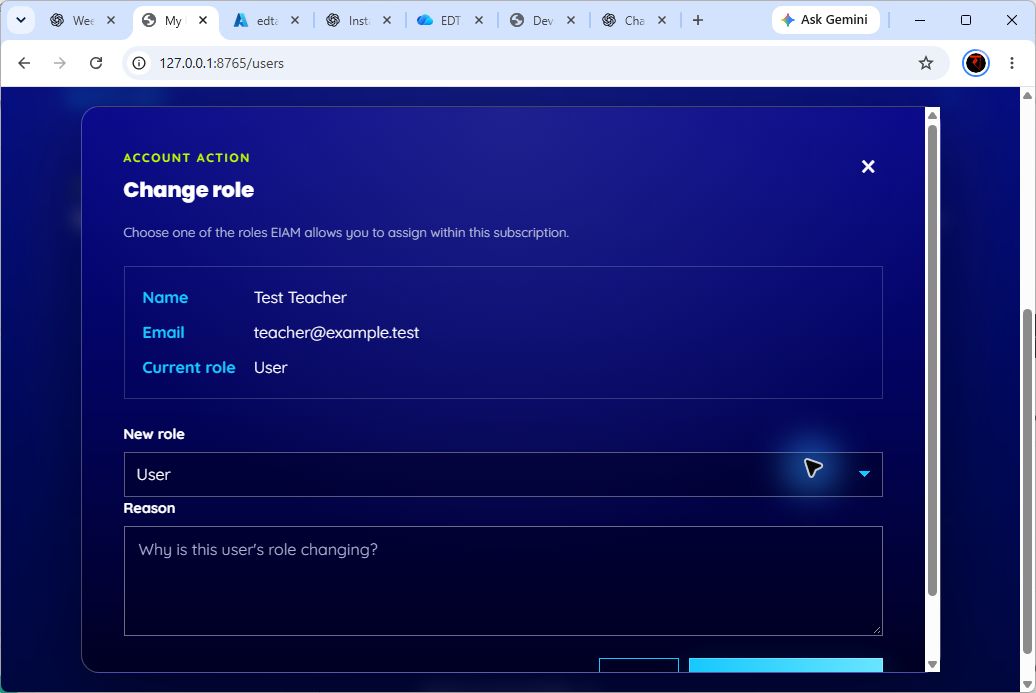
- Sign in as an administrator who can manage the subscription.
- Open EIAM > My Users.
- Search by name, email, or exact user ID.
- In Account action(s), select Change role.
- Review the user's name, email, and current role.
- Select a New role. The list contains only roles EIAM allows you to assign.
- Enter a clear reason between 1 and 500 characters.
- Select Confirm role change and approve the confirmation prompt.
- Confirm the success message identifies the new role.
The portal replaces the subscription role with the selected role. It does not add an arbitrary second role. Self-role changes are blocked. The service also protects the last administrator and prevents cross-subscription or conflicting updates.
Verify the new access
- Return to My Users and confirm the role shown in the Roles column.
- Open the user's name and confirm the role in User details.
- Ask the user to sign out and sign in again. If EIAM revoked existing sessions, signing in again is required.
- Confirm that the user sees only the navigation and pages permitted by the new role.
Expected administrator access
- PlatformAdmin: subscription-scoped administration, including My Users, eligible external users, EDMA downloads when the subscription and EDMS scope are available, EAIE, and Logs.
- SuperAdmin: global overview and global account actions in addition to administrator functions.
- User, Learner, Guest: no Admin Portal administration access unless another permission-bearing membership grants a supported function.